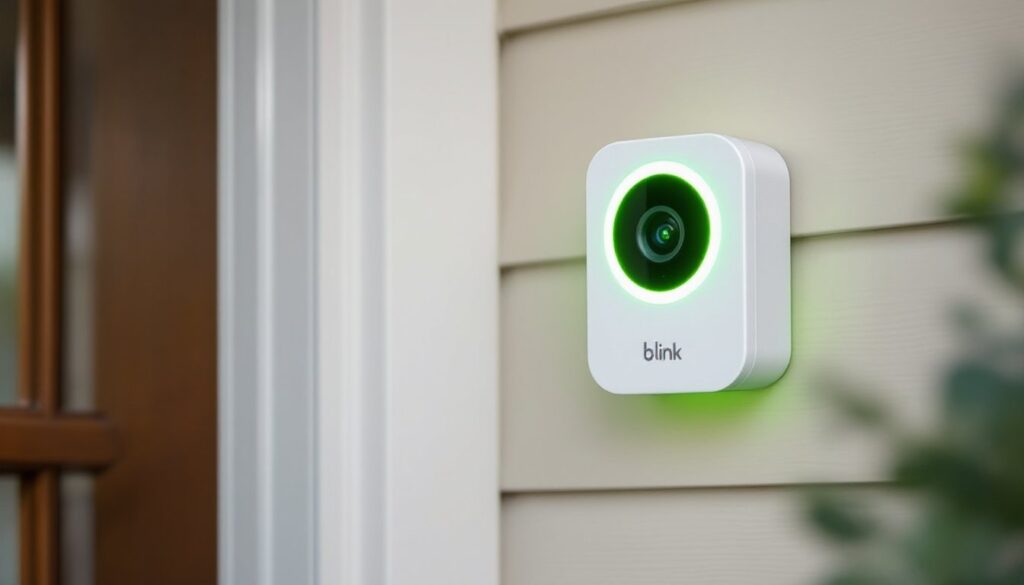
Blink security cameras are known for their reliability and simple setup, but that steady or flashing green light can throw homeowners for a loop. If you’ve noticed your Blink camera blinking green and aren’t sure what’s happening, you’re not alone. This indicator light is the camera’s way of communicating its status, usually signaling setup mode, a network connection attempt, or a firmware update in progress. Understanding what the green light means is the first step to getting your camera back to normal operation. This guide walks through the causes of a green blinking light on a Blink camera and provides straightforward fixes to resolve the issue quickly.
Table of Contents
ToggleKey Takeaways
- A Blink camera blinking green indicates active communication with your Wi-Fi network or Sync Module, typically during setup mode or firmware updates.
- Connection issues caused by weak Wi-Fi signals, router changes, or incorrect network credentials are the most common reasons for persistent green blinking lights.
- Verify your router broadcasts a 2.4 GHz signal with at least three bars of strength in the Blink app, as Blink cameras do not support 5 GHz networks.
- Reset both the camera and Sync Module using their reset buttons for 10-15 seconds if network troubleshooting doesn’t resolve the blinking green light.
- Never unplug or reset your Blink camera during a firmware update, as it can corrupt the software and potentially require device replacement.
- If the green light persists beyond 10-15 minutes despite troubleshooting, contact Blink customer support for warranty assistance or hardware diagnostics.
What Does a Green Blinking Light on Your Blink Camera Mean?
A green blinking light on a Blink camera indicates the device is in an active communication state with your home network or the Blink Sync Module. Unlike a solid blue light (which means the camera is recording) or a red light (which signals low battery or connection failure), green specifically relates to network connectivity and setup processes.
When you first install a Blink camera or add a new device to your system, the camera enters setup mode and attempts to connect to your Wi-Fi network through the Sync Module. During this phase, the camera flashes green while it searches for and establishes a connection. This is completely normal and expected behavior during initial installation.
The green light can also appear when the camera is receiving a firmware update. Blink periodically pushes software updates to improve performance, patch security vulnerabilities, and add new features. While the update downloads and installs, the camera may display a blinking green light and won’t respond to motion detection or live view requests.
In some cases, a persistent green blinking light indicates the camera has lost its connection to the Sync Module or your home Wi-Fi network and is trying to reconnect. This can happen after a power outage, router reset, or if the camera has been moved too far from the wireless signal source. According to smart home device troubleshooting guides, connectivity issues are among the most common problems users face with wireless security cameras, and most are resolved through basic network checks.
If the green light continues blinking for more than 10-15 minutes without transitioning to a solid blue or turning off, it’s a sign that something is preventing the camera from completing its connection process. That’s when you’ll need to step in with some troubleshooting.
Why Is Your Blink Camera Blinking Green?
Understanding the root cause behind why your Blink camera is blinking green helps you target the right fix. There are two primary reasons this happens: connection issues during setup or active firmware updates. Let’s break down each scenario.
Connection Issues and Setup Mode
The most common reason for a Blink camera flashing green is that it’s in setup mode and trying to establish a connection with your Wi-Fi network or the Blink Sync Module. This happens in several situations:
-
Initial installation: When you first power on a new Blink camera, it automatically enters setup mode. The camera scans for the Sync Module and attempts to pair with it using the credentials you’ve entered in the Blink app.
-
After a factory reset: If you’ve reset the camera (by holding the reset button for 10+ seconds), it returns to factory defaults and needs to be re-added to your system. The green light indicates it’s waiting for setup instructions.
-
Wi-Fi network changes: If you’ve changed your router, updated your Wi-Fi password, or switched from a 2.4 GHz to a 5 GHz network (Blink cameras only support 2.4 GHz), the camera will lose connection and attempt to reconnect, triggering the green blinking light.
-
Signal interference or weak Wi-Fi: Thick walls, metal siding, or distance from the router can weaken the Wi-Fi signal. When the camera can’t maintain a stable connection, it enters a loop of attempting to reconnect, which shows up as a blinking green light. Blink cameras require a minimum signal strength of three bars in the Blink app for reliable operation.
-
Sync Module offline: If the Sync Module itself has lost internet connection or power, the camera can’t communicate with it and will keep trying to reconnect. Check that the Sync Module has a solid blue and solid green LED (indicating it’s online and connected to the internet).
Many homeowners place cameras in outdoor locations or far corners of the house without testing signal strength first. Always verify Wi-Fi coverage in the installation area before mounting the camera permanently. Use the Blink app’s signal strength indicator during setup to confirm adequate coverage.
Firmware Updates in Progress
Blink cameras receive automatic firmware updates from the cloud to improve performance and security. When an update is being downloaded and installed, the camera displays a blinking green light. This process typically takes 5-10 minutes, depending on the size of the update and your internet speed.
During a firmware update:
- The camera won’t respond to motion events or live view requests
- The Blink app may show the camera as “busy” or “offline”
- The green light will blink steadily until the update completes
- Once finished, the camera will reboot automatically and return to normal operation
You can check for pending or active updates in the Blink app under Device Settings > Device Information. If a firmware update is in progress, the app will display the update status. Do not unplug or reset the camera during a firmware update, as this can corrupt the software and require a factory reset or, in rare cases, replacement.
According to connected device reviews, firmware updates are a critical but often overlooked aspect of smart home security. Keeping your cameras updated ensures you have the latest security patches and feature improvements. If you suspect an update is stuck (green light blinking for over 30 minutes with no change), wait an additional 15 minutes, then try a soft reset by removing and reinserting the batteries.
How to Fix a Blink Camera Blinking Green
Once you’ve identified why your Blink camera is blinking green, you can take targeted steps to resolve the issue. Most problems stem from Wi-Fi connectivity, so start with network troubleshooting before moving to hardware resets.
Verify Your Wi-Fi Connection and Signal Strength
Start by confirming your home network is working properly and that the camera is within range of a strong Wi-Fi signal. Blink cameras only connect to 2.4 GHz Wi-Fi networks, they do not support 5 GHz bands. Many modern routers broadcast both frequencies, so ensure your network settings haven’t defaulted to 5 GHz only.
Here’s how to check and improve your Wi-Fi connection:
-
Check router status: Verify your router is online and broadcasting a 2.4 GHz signal. Log into your router’s admin panel (usually accessible via 192.168.1.1 or 192.168.0.1) and confirm the 2.4 GHz band is enabled.
-
Test signal strength: Open the Blink app, go to Device Settings, and check the signal strength indicator. You need at least three bars for stable operation. If signal strength is low, consider these options:
- Move the Sync Module closer to the camera (maximum recommended distance is 100 feet with minimal obstructions)
- Relocate the router to a more central position in your home
- Add a Wi-Fi extender or mesh network node to boost coverage in the camera’s location
- Remove physical obstructions like metal filing cabinets, aquariums, or large appliances between the router and camera
-
Verify network credentials: Ensure you’re entering the correct Wi-Fi password in the Blink app during setup. Passwords are case-sensitive, and even a single incorrect character will prevent connection.
-
Check for network congestion: If you have many devices connected to your 2.4 GHz network, bandwidth congestion can cause intermittent connectivity. Try disconnecting non-essential devices or upgrading to a dual-band router that can handle more simultaneous connections.
-
Restart your router: Sometimes a simple router reboot resolves connectivity issues. Unplug the router for 30 seconds, then plug it back in and wait 2-3 minutes for it to fully restart before attempting to reconnect the camera.
If Wi-Fi signal strength is consistently poor in the camera’s location and you can’t relocate the Sync Module, you may need to run Ethernet to a secondary router or access point closer to the camera. This is common in larger homes or properties with metal siding that blocks wireless signals. As noted in home automation coverage, mesh Wi-Fi systems have become increasingly popular for extending reliable coverage to outdoor security cameras.
Reset Your Blink Camera and Sync Module
If network checks don’t resolve the blinking green light, a reset of the camera and Sync Module usually does the trick. This process clears any corrupted settings and forces the devices to re-establish a fresh connection.
To reset the Blink camera:
- Locate the reset button on the camera (usually found near the battery compartment or on the bottom of the device)
- Use a small paperclip or pin to press and hold the reset button for 10-15 seconds
- The camera’s LED will flash red, then turn off
- Release the button and wait 20-30 seconds for the camera to reboot
- The green light should begin blinking as the camera enters setup mode
To reset the Sync Module:
- Locate the reset button on the back or bottom of the Sync Module
- Press and hold the reset button for 10 seconds until the LED turns red
- Release the button and wait for the Sync Module to reboot (this takes about 1-2 minutes)
- The LEDs should display solid blue (power) and blinking green (attempting internet connection), then solid green once connected
After resetting both devices, you’ll need to re-add the camera to your Blink system through the app:
- Open the Blink app and tap the + icon to add a device
- Select your camera model from the list
- Follow the on-screen prompts to scan the QR code or manually enter the camera’s serial number
- Wait for the app to detect the camera and establish connection (the green light will blink during this process)
- Once connected, the green light should turn off and the camera will enter standby mode
If the camera still won’t connect after a reset, check that your Sync Module firmware is up to date. Outdated Sync Module software can cause compatibility issues with cameras running newer firmware. Update the Sync Module through the Blink app under Sync Module Settings > Update Firmware.
In rare cases where resets don’t work, the issue may be hardware-related, such as a failing Wi-Fi radio in the camera or Sync Module. Contact Blink customer support for warranty replacement options if the camera is less than two years old. Always test a replacement camera in the same location before assuming the problem is environmental.
One final note: if you’re installing multiple Blink cameras, add them one at a time rather than trying to set up several simultaneously. This reduces network congestion during the pairing process and makes troubleshooting easier if one camera has issues.